From OJS to JournalOS, step by step
How to bring a journal's issues, articles, PDFs and old addresses from OJS to JournalOS without losing any of them: the export, the rehearsal, the final import and the window to undo it, with screenshots.
Two things worry a journal most about leaving OJS: part of the archive going missing on the way, and the old article addresses breaking. Migration to JournalOS is built around both. We ran the steps below for real with a fictional journal (Journal of River Studies); the screenshots are from that import.
What comes across
- Issues, articles, authors with their affiliations (from OJS 3.5, several per author, with ROR IDs) and ORCID iDs, titles and subtitles, abstracts, keywords, references, pages, dates and DOIs.
- The articles' PDFs, embedded in the export; reading versions kept elsewhere (OJS remote galleys) as links.
- The old OJS addresses: article, issue and PDF addresses redirect permanently to the new pages.
- If you wish, the people: editors, reviewers and authors with their roles.
What stays behind is just as clear: passwords, phone numbers, postal addresses, biographies and people who were only readers. Some parts of the articles stay behind too: HTML and ePub reading files (each named as a warning in the report), an article's own licence and copyright holder (the journal's licence is used), earlier versions (only the current one comes) and the corresponding author's mark. The mark is left off for a reason: JournalOS shows the corresponding author's e-mail on the article page and OJS does not, so carrying the mark over would publish addresses that OJS kept private. No sections are created: an article joins a section of the journal with the same title or short name, where there is one. No account or password is created for anyone; a person takes up their roles on first signing in with the same confirmed e-mail address.
1. Export from OJS
JournalOS reads the built-in Native XML export of OJS 3.2 to 3.5 and checks the file against PKP's own schema. We took an issue export written by OJS 3.5.0-5 itself on a real install (with a versioned article, PDFs in two languages, affiliations with ROR IDs and references) and imported it; reading it back, every field matched the source and every PDF was the same byte for byte. The file is part of our tests.
- Sign in to OJS as an administrator or journal manager.
- Open Tools › Import/Export › Native XML Plugin.
- On the Export tab, choose the issues to move and export them.
- To move the people as well, export the users with the Users XML Plugin in the same menu.
A very large archive can time out in the browser. For that case PKP suggests the command-line tool php tools/importExport.php on the server.
2. Upload the file to the panel
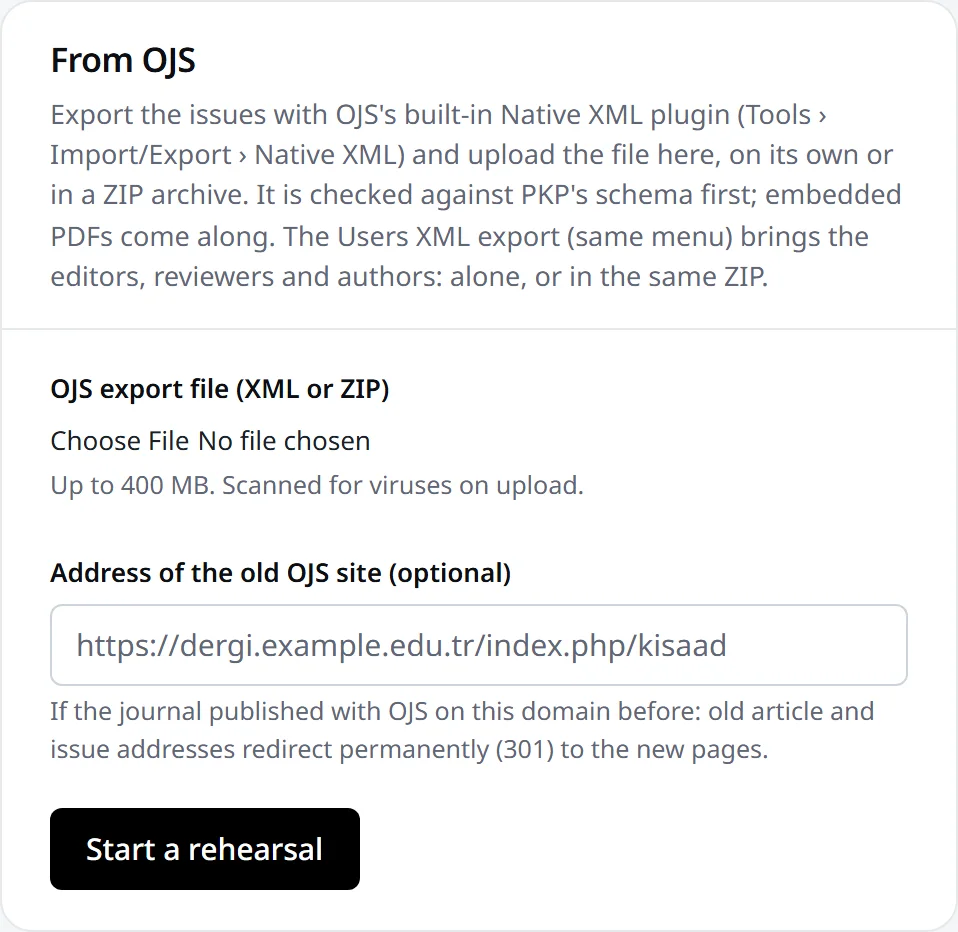
In the JournalOS panel, open Archive import. Under From OJS, upload the file as XML or ZIP (up to 400 MB); it is scanned for viruses first.
In Address of the old OJS site (optional), enter the journal's old address, for example https://journal.example.edu/index.php/shortname. JournalOS works out the old addresses from it.
3. The rehearsal
Start a rehearsal really writes everything, checks it and rolls it back at the end; nothing stays in your journal. A rehearsal tries the first 10 PDFs only. It ends with a report:
- Count reconciliation: how many issues, articles, authors, DOIs and files the source holds, how many passed the checks and how many would be written.
- Field accuracy: whether every field written matches the source exactly.
- Old addresses: how many will redirect.
- Findings: records that would be imported with a correction, or not at all. In the example one author's e-mail address was invalid; the address was removed, the article imported, and the report says so.
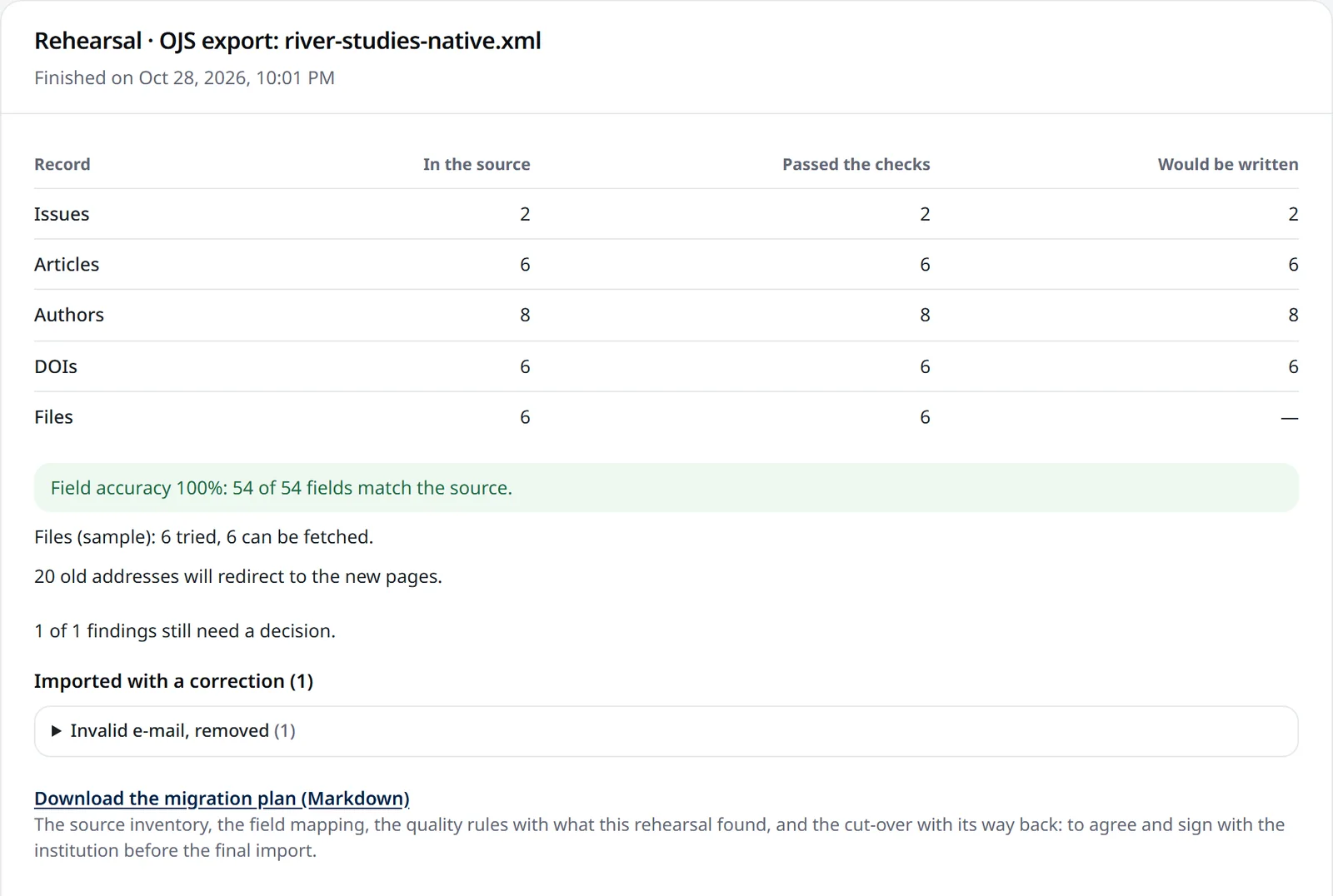
Under the report are Download the migration plan (Markdown) and Download the data quality report (CSV). The plan sets out the source's inventory, where each field goes, what this rehearsal found and the way back. It is made for you to agree with your institution before the final import.
4. The final import
If the report looks right, carry on from the same place with Start the final import:
- First you tick The old system is read-only from now on. The confirmation is recorded with the time.
- Before anything is written, a full backup of the journal is taken; without it the import does not start.
- It is all or nothing: unless every field written matches the source, none of it is kept.
- Afterwards, within 1 to 72 hours (24 by default), you choose Keep the import or Undo the import. If you choose neither, the import stays.
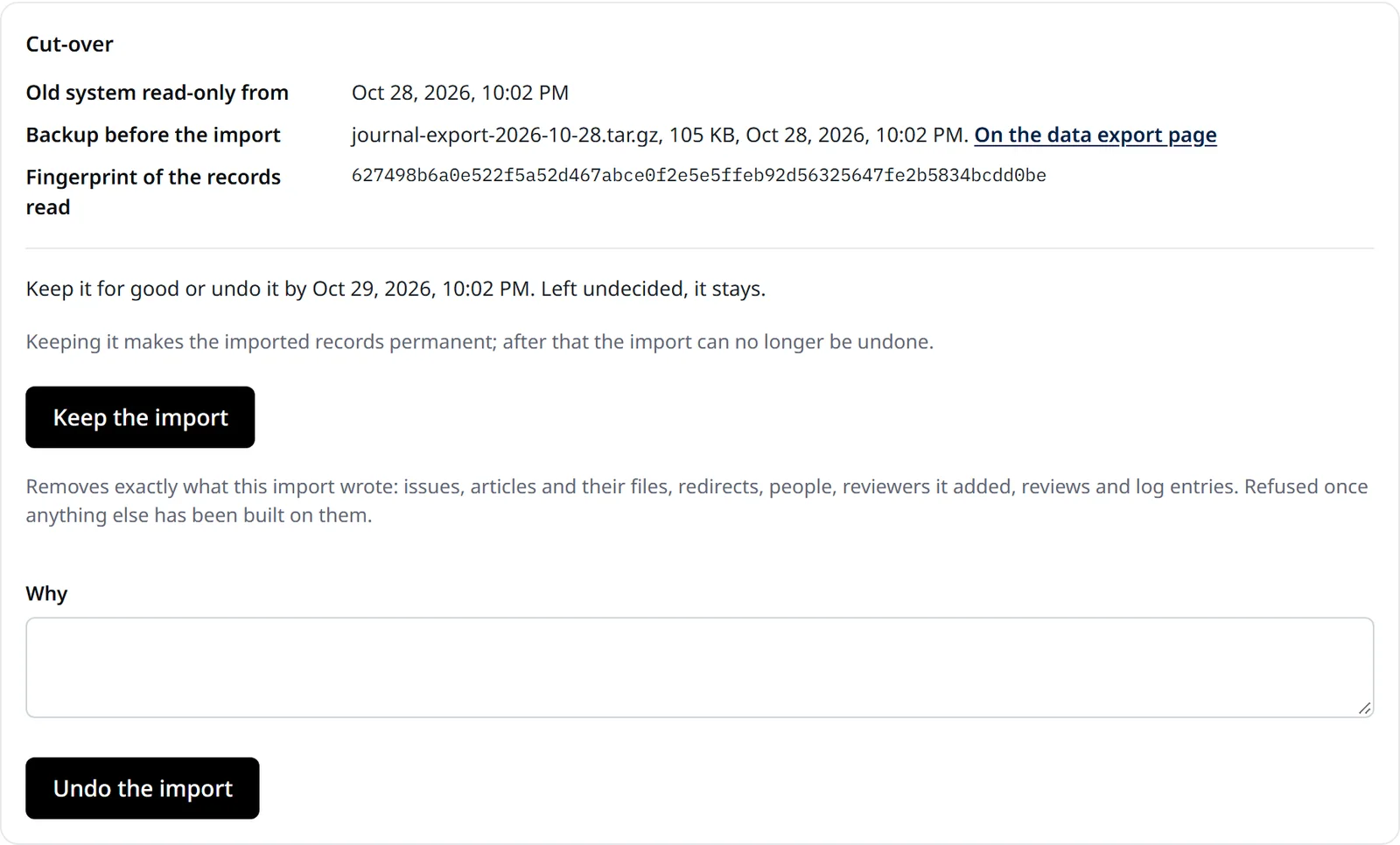
Undoing removes exactly what this import wrote. Once something has been built on the imported records (a new version, an editor's step, a review), it is not undone in the panel; the backup is kept for seven days and the platform team restores it.
5. The old addresses keep working
In the example journal the old OJS addresses redirected like this:
/index.php/jrs/article/view/101            -> 301 /articles/2025.0001
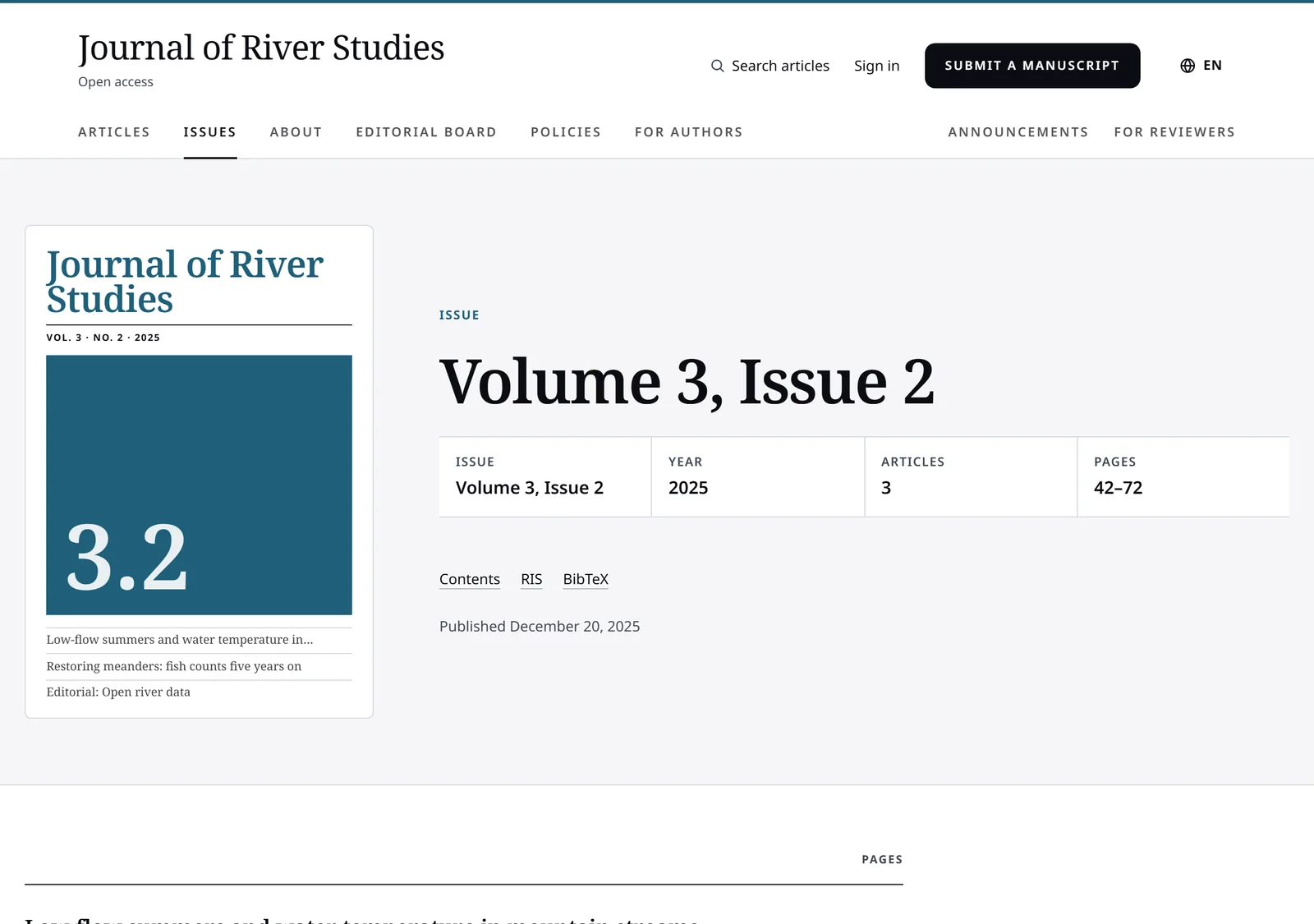
/index.php/jrs/issue/view/12               -> 301 /issues/3/2
/index.php/jrs/article/download/101/2101   -> 301 /articles/2025.0001/pdf
Search results, links people have shared and addresses in citations do not break. DOIs are permanent anyway; when your journal moves its domain to JournalOS, updating the Crossref records to the new addresses is also done from the panel.
Manuscripts in review and the review history
OJS's issue export carries published articles. Manuscripts still in review do not come this way; the review history and the event log can be brought in separately with the templates under From a spreadsheet in the panel.
For the full reference see Moving an archive; for the migration service, the Migration page. We move the journals of the founding programme together with their editors: Founding journals.